
Logging In
Your GLAA Google Apps username/email address is your regular computer account name plus @glaa.net. For example, jsmith@glaa.net. If you haven’t gotten your password yet, please stop by the IT Department.
To log into your GLAA Google Apps account:
- Open Google Chrome.
- Go to gmail.com.
- If Gmail automatically logs you into an account that isn’t your glaa.net account, you’ll need to sign out. Click the
 icon in the upper-right corner, click Sign out, then click Add account on the next page.
 - Enter your glaa.net email address.
- Enter your glaa.net password.
- Click Sign in.
Forwarding
To Your Personal Email Account
Your new Google Apps account isn’t just for sending email; it’s also for sharing and collaborating with other staff. However, if you want to primarily use your personal email account anyway, you can forward to it from your GLAA Google Apps account.
- Log into your GLAA Google Apps account.
- Click the settings gear icon in the upper-right corner:

- Click Settings.
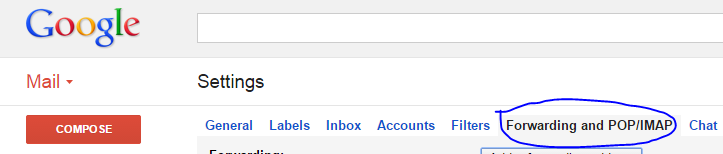
- Click Forwarding and POP/IMAP:
- Click Add a forwarding address.
- Enter your personal email address.
- Click Next.
- Click Proceed.
- Click OK. A confirmation email is sent to your personal email address.
- Log into your personal email account.
- Open the email from your GLAA Google Apps account.
- Follow the instructions in the email to activate forwarding from your GLAA Google Apps account to your personal email account.
From MISDA
If you want to forward email from your MISDA account to your new GLAA account:
- Log into your GLAA Google Apps account.
- Click the settings gear icon in the upper-right corner:
- Click Settings.
- Click Accounts:

- Click Add a POP3 mail account you own.
- Enter your MISDA address in the Email address field.
- Click Next Step ».
- Leave the default username in the Username field.
- Enter your MISDA password in the Password field.
- Leave the rest of the settings at their default values and click Add Account ».
- Click No, you do not want to send mail from Gmail through your MISDA account (this is disabled on MISDA’s end).
- Click Finish.
Why Use Google Apps?
Great Lakes Adventist Academy uses Google Apps for:
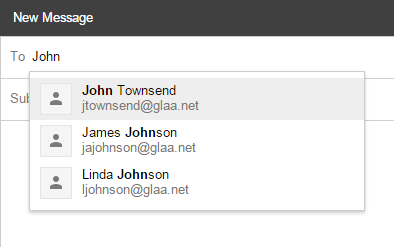
- Communication. You can use your GLAA Google Apps account to email individual students—or groups of students—without having to ask them for their addresses. Just start typing a name to see suggestions:
- Sharing. Using Google Apps, you can easily share a document you’ve created with others. You can give them permission to modify it or just read it, or you can keep it private.
- Collaboration. Multiple people can work on a document you’ve shared with them at the same time. You’ll see their edits live as they happen.
- Access anywhere. Google provides free software that makes it easy to use Google Apps on your computer, phone, or tablet, anywhere in the world with an Internet connection.